


Tommie6.5
Members
-
Joined
-
Last visited
-
The LBSA float voltage is 56.2VGood day i got rid of my hubble am2 bought a LBSA it is working now the eps is not tripping only problem is it won't charge battery past 98%(56v)Good day i have the same problem with it not charging. My setup is luxpower sna5000 with hubble am2 i had firmware updates on both inverter and battery. The problem is after loadshedding when the soc dropped below 90% and when it should start it sometimes charges for 5 minutes then stops. I is very frustrating.If i set the battery as lead acid with correct voltage settings the eps does not trip it only trips when it is on lithium iron. My setting is correct for battery it is battery brand 2I have an active bms connection i am thinking the problem is with the hubble's bms because sometimes when ac charge comes on after about 10 seconds i can hear n faint click like an relay kicking in from the battery then the ac charge stops. My setting are correct i believe and there does not seems to be a specific soc when this happens
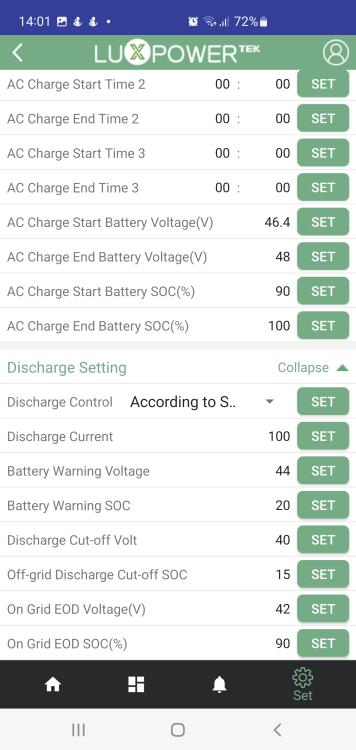
 I have a luxpower sna5000 it worked fine in the beginning now during loadshedding after about an hour the eps goes off and back on again about every 5 minutes and it seems to be getting worse. I have one hubble am2 battery connected no panels yet.


