ArthurB
Members
-
Joined
-
Last visited
-
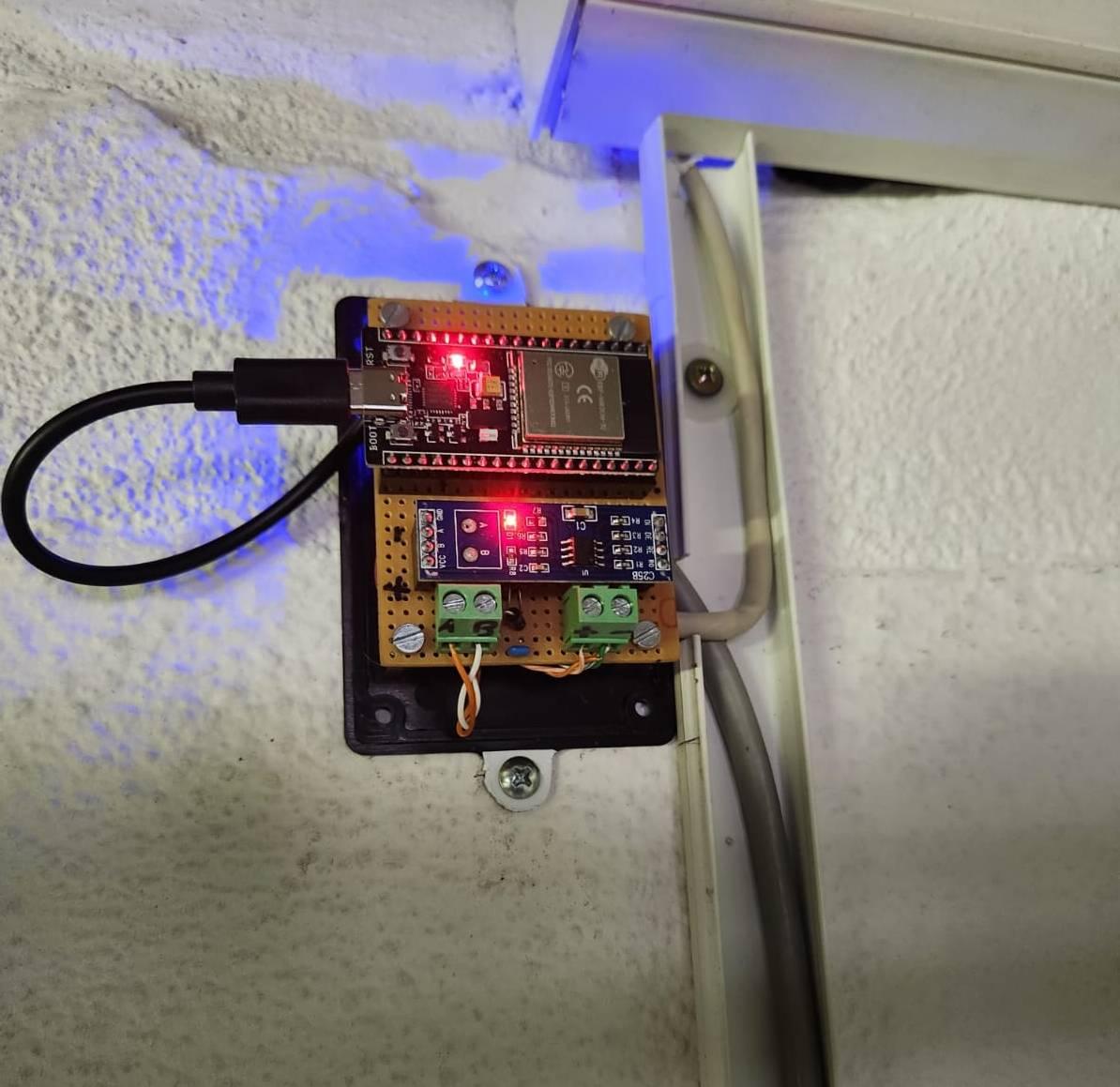
I have attached two images for context. I will need to jumper out of the box to get the lid on when using USB power. It solves the problem, but should not be necessary. The connector to the RS485 board has been moved to the main board because of lid clearance. (I had the issue before moving the connector) Using high stand-offs to fit DC-DC LM2596 under board with big gap between boards. (Had problem before adding DC reg under board.) I bought a few more of these ESP32 CP2102 boards for geyser temperature, etc... I hope that not all projects will need to be powered via the USB to eliminate comms errors.

 Yes I have removed R7. Also have RS 485 Pin2 (orange) going to A leg on 485 to TTL board. Comms does work when powering via USB with a cable adapter. Will post a pic later.Thank you to all the code and content creators. It is fantastic that I am now able to get all the SunSynk data on my HA. I has some teething problems with the ESP32 Dev Board CP2102 that has a different pin layout to the ESP Dev Board CH340. I have good data coming in when powering the ESP32 from the USB-C port, but when I power via 5V pin, I get lots of CRC errors. Using exact same power supply. Also tried different power supplies (Phone chargers, DC-DC, Linear 7805,etc..) with same results. Always works perfectly when going in via USB-C, but not on 5v Pin. I tried decoupling capacitors 100nf and 6800uf in parallel. 10uf on reset pin to delay boot. Also tried Cap on unused 3.3v rail, etc.. I have been testing suggestions online with no joy. I have everything mounted on VeroBoard (with sockets) and want to the housing. Will need to take a lead out of the case and back in the side to use USB-C as power. I would prefer to use 5V power pin and keep everything internal. Has anyone had this issue or have any ideas?