


XAB
Members
-
Joined
-
Last visited
-
-
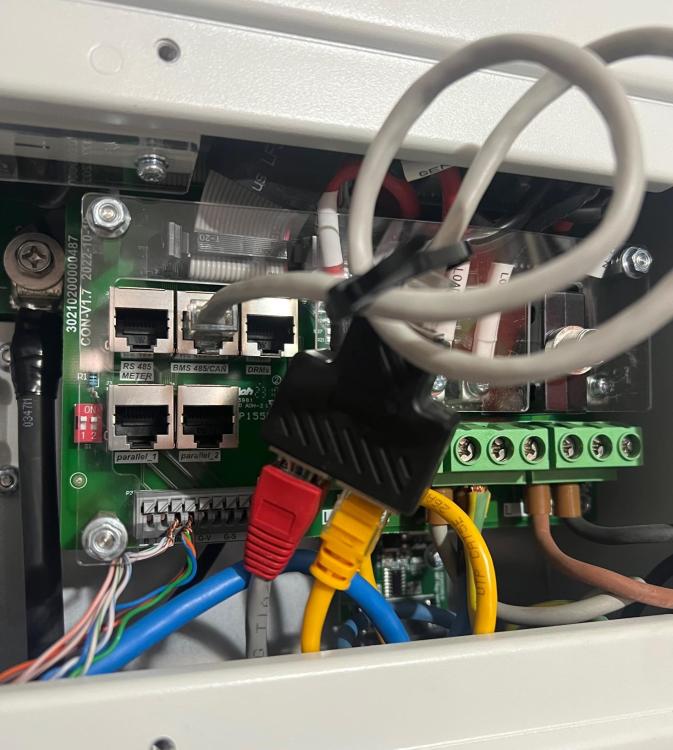
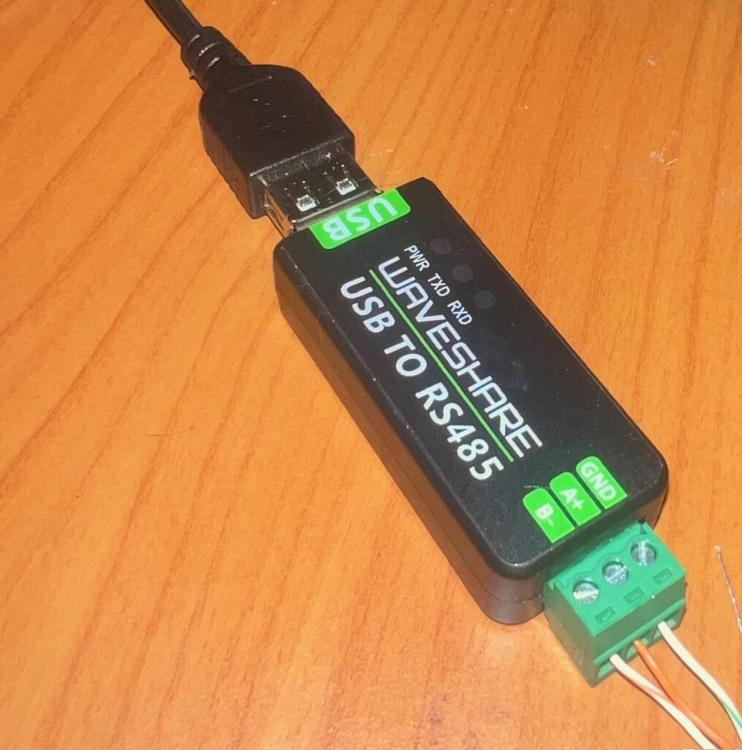
Glad I could help @XianZA. I have now connected both cables on the BMS 485/CAN of my SUNSYNK 5.5KW(newer model) with the below RJ45 Duplicator (Important to get one that does not split the pairs but rather "mirrors" it). I connected Orange to A+ - Orange/WHT to B- and Green/WHT to ground on my USB to RS485. Now I can update settings via HASSIO finally. Important to note that the RX / TX works on pins 1(Orange/WHT) and 2(Orange) and your battery on pins 4(Blue) and 5 ( Blue/WHT). I tested this first when getting the RJ45 splitter/duplicator. Prior to this I could receive data via the RS485 port next to the CAN port(left of it) but had to use Blue/WHT(A+) & Blue (B-) from the cable to receive data via the USB to RS485. But could not update as the RS485 port only allowed to receive data. Image of RJ45 Duplicator into BMS 485/CAN Image of USB to RS485
-
-
Maybe this helps.:https://solar-assistant.io/help/deye/2_in_1_bms_port I also spent hours trying to get data and see the same in logs with no communication from the inverter. It seems the new Sunsynk inverter(5k) you need to join the 2 cables in the BMS port. I hope to find one this week and try it. Will update you if it worked


