jfbo37
Members
-
Joined
-
Last visited
Everything posted by jfbo37
-
Hello after a firmware update (V2.3 SN xxxxxxxC5xxxxxxx : US_E3_V2.3_Crc.bin) of my 10 Pylontech US 5000 with VRM Victron Cerbo GX, Single readout with BatteryView works well on each battery console port (v2.3 update ok), but "United" on master battery console port don't work. scanning with BatteryView 3.0.37 "United" quantity 10 fails with "fail to resolve the buffer: of the 3trys". Now batteryview request me Serial Number at startup everytime 2 with firmware V1.3 4 with firmware v2.0 4 with firmware v2.3 the serial number is no more visible on bar code (it was already the case on my 4 v2.3 batteries, only visible for v1.3 & 2.0)

-
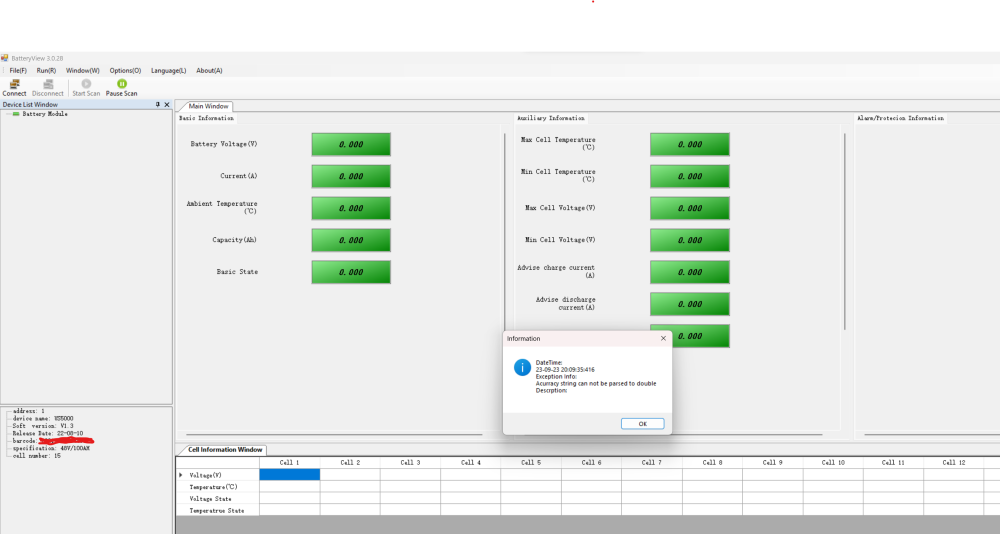
you need to change Regional Settings on the computer to US (English)
-
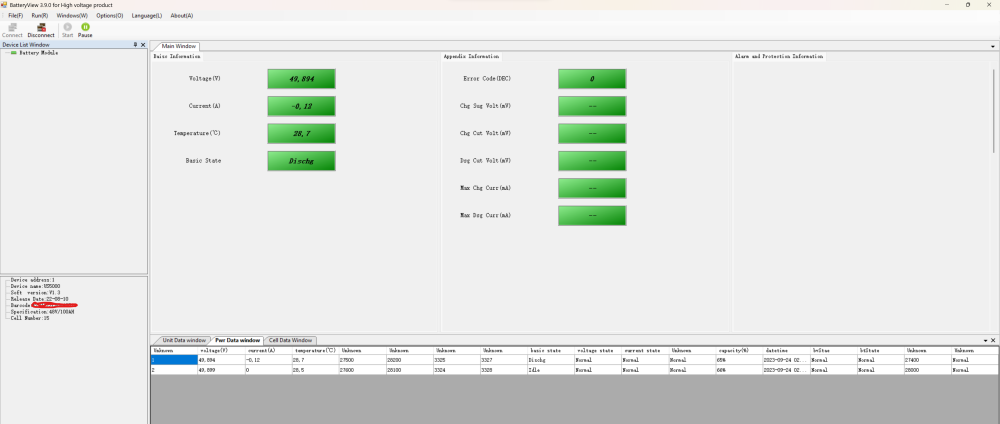
Hello, on batteryview i have this error message (version 3.0.28, 3.0.29) : accuracy string cannot be parsed to double. Do you know the problem ? i found solution on forum : you need to change Regional Settings on the computer to US (English) But i can't to see number of cycles used, do you know you to see this information ? on the left i see : device name : US5000 soft version : 1.3 barcode : battery serial number connected i try BatteryView HV version 3.9.0 B1.2 with "target Type" CMU_2 it seems to show some informations but not all Thank you