


platpoot
Members
-
Joined
-
Last visited
-
-
For a final update to this thread I have received a note from Mustek on how to reset the battery management software. I do not now if these steps work, however because I could not find how to do this online I will post it here in case anyone else wants/needs to perform a battery reset on a Mecer SOL-I-BB-M2L Mecer 2Kw 25.6V 100Ah Lithium Battery 820W MPPT: How to reset the battery management system: 1. Ensure you unit is on and displaying 0% battery state of charge. 2. Press and hold the battery switch (silver switch at the side panel for at least 6 seconds). When you leave the battery switch the unit will shut down. 3. Press the battery switch again but only for 1 second similarly to switch it on. 4. Press and hold the on/off button until the unit gives you a display. 5. Use the navigation up button (blue up and down buttons at the front panel), press it once to see the state of charge. 6. The state of charge should be 100% if the unit was fully charged.
-
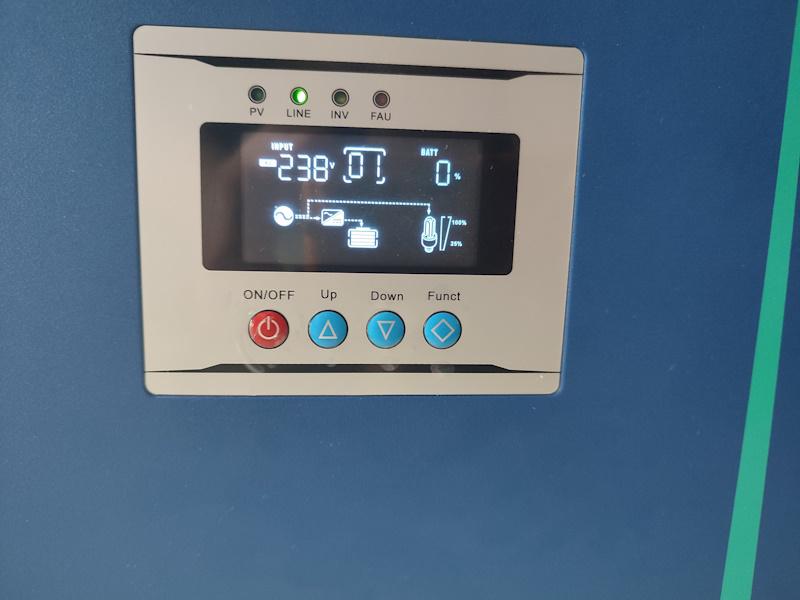
To answer the questions. The green light for "Line" indicates the inverter is receiving power from the mains. The [01] indicates the charging type (in this case, priority from the mains, then battery as a failover). And the 0% under BATT indicates the charge level for the battery. Update: After some fiddling I was able to get the battery charging. I only know this, because it stayed on for a while after load shedding started. My current assumption is that it is related to a known issue regarding calibration/firmware (as indicated by this post https://mybroadband.co.za/forum/threads/mecer-sol-i-bb-m2l.1232227/post-30991951). After Googling it seems there is only two know ways around it. To either deplete the battery and charge it back up to full (which didn't work), or to get a firmware update for the device. I emailed both Mercer and Mustek, and surprisingly Mustek came back relatively quickly. I'm going to take the device to one of their service centers to have it fixed.
-
Hi I have a "Mecer SOL-I-BB-M2L Mecer 2Kw 25.6V 100Ah Lithium Battery 820W MPPT" that I purchased a little over two months ago. I've run into an issue where it is no longer charging the battery, and has run empty as a result. It is only plugged into the main and receives power. I've tried pressing the "battery switch" and "AC Input Protect" switch at the back while both plugged in and not, but it made no difference. I've also tried switching it off at the front while leaving it plugged in while on setting 01 - P3, which is supposed to just charge the battery according to the manual. It could just be because the battery has now run empty, but it appears that the Battery Switch isn't doing anything. I'm not sure what caused this, or how to fix it. Any assistance would be greatly appreciated.
-
Is it fine to use a DC splitter cable with a single device, or is it better to get a straight cable? I recently got a UPS for my router, however the device only came with a splitter cable. My concern is, is there a power loss by using a splitter cable with a single device, and I’m wondering if it’s better to get a straight cable. I want the UPS to be able to power the router for as long as possible.
