Maxmax2
Members
-
Joined
-
Last visited
-
 Cef reacted to a post in a topic:
Goodwe ES Series Inverter. Software System for Real Time Monitoring in LAN.
Cef reacted to a post in a topic:
Goodwe ES Series Inverter. Software System for Real Time Monitoring in LAN.
-
What a fantastic piece of software. All parameters at a glance in a customisable schematic and more details deeper down. Thank you Cef.
-
-
Maxmax2 reacted to a post in a topic:
Goodwe ES Series Inverter. Software System for Real Time Monitoring in LAN.
-
-
-
No, it is in the settings of the SEMS Portal app. The options are Residential, Battery Storage, Ground-Mounted and Commercial Rooftop.I am not sure what each setting does, but Residential does not give you the flow diagram.
-
You can change it in the settings on the Android app, but you probably shouldn't.
-
-
-
Well, after emailing David Havenga, I got a very prompt response, which sorted my problem out. I had changed my classification from "Battery Storage" to "Residential". Apparently Residential is Residential Grid-tie. I hope someone else can use this information, either now or in the future.
-
I'm back at my PC, and tried to zoom out (all the way to 25%) with no luck. Still the screen with a big blue circle, and no other tabs. I get the same no matter which PC I use or which browser I use, and as I say, also on the app. They all used to display just fine.
-
Perfect. Thank you. I am away from my PC for a few days with just my phone. I will give that a bash as soon as I get back.
-
Nope, still the same on both PC and app after clearing cache. I must say that it doesn't matter if I use Chrome, Edge or Internet Explorer, the view is the same. I have emailed [email protected] as suggested by @Fuenkli, so I will see what this brings.
-
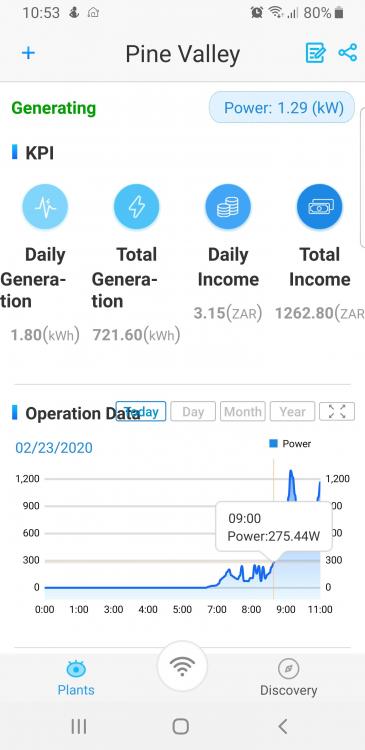
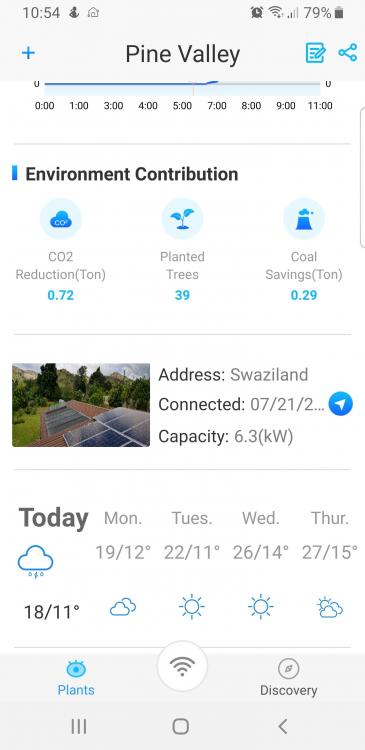
Thanks @Bobster. I used to get that display, but now I get the display I posted above. On my app I get the following (2 pictures to show when scrolled), no diagram at all. I will clear the caches in both browser and app and see if this helps.
-
Thank you. I will email them.
-
Thank you @Fuenkli, that is what my SEMS Portal used to look like. It changed about 3 or 4 weeks ago. My SEMS Portal android app also changed about the same time, and now all I see is a graph of the daily generation. I do have the option to see a graph of daily, monthly or yearly generation. I will email Goodwe support as suggested. Does anyone have a reliable contact who I can email and get a response?
-
There is nothing anywhere that you can choose another view, only the "Curve" above the big blue circle to the right which changes the view to a graph similar to the one already displayed above the normal view. I see that my PV Master has also changed since the last update, and no longer shows the backup load and mains load separately, but just shows one load as SEMS Portal used to show.
-
I no longer get the flow diagram on SEMS Portal, as in Sparkles quote above, just a screen with a big blue circle showing Generation for the day and other relevant info on both sides of the circle as below, and it is the same on the Android app. Is there any way to get the flow diagram back?

-
Do you mind sharing this utility or where it can be obtained from?