Skip to content
View in the app

A better way to browse. Learn more.

Power Forum - Renewable Energy Discussion

A full-screen app on your home screen with push notifications, badges and more.

To install this app on iOS and iPadOS
  1. Tap the Share icon in Safari
  2. Scroll the menu and tap Add to Home Screen.
  3. Tap Add in the top-right corner.
To install this app on Android
  1. Tap the 3-dot menu (⋮) in the top-right corner of the browser.
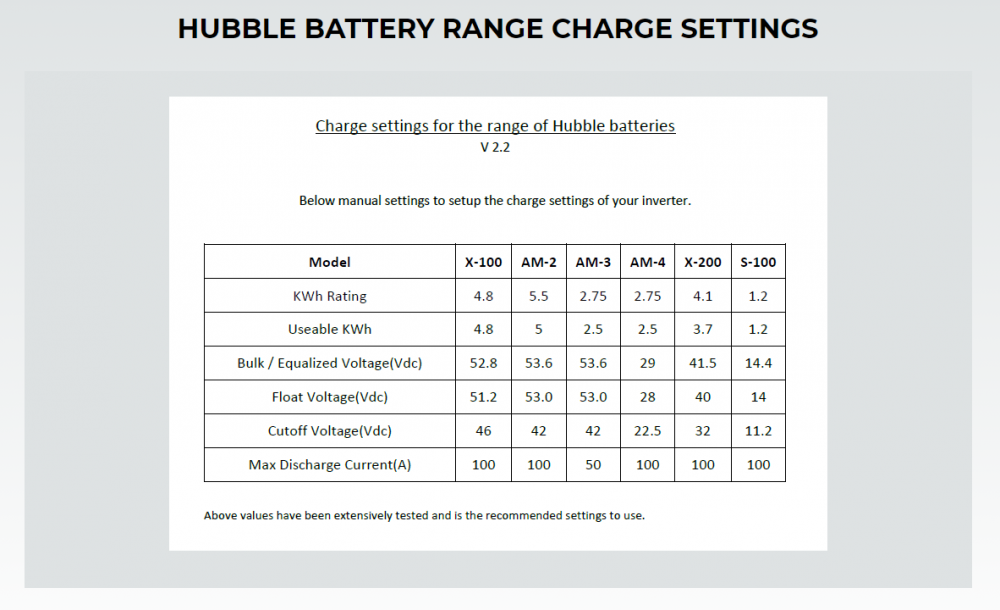
  2. Tap Add to Home screen or Install app.
  3. Confirm by tapping Install.

TeddyBear

Members
  • Joined

  • Last visited

  1.    TeddyBear reacted to a post in a topic: New Install - Synsynk and Hubble
  2.    TeddyBear reacted to a post in a topic: Deye Hubble CAN communication
  3.    Iiceman reacted to a post in a topic: Deye Hubble CAN communication
  4. Hi there. This worked! Thanks so much
  5.    Iiceman reacted to a post in a topic: Deye Hubble CAN communication
  6. Thank you. I will try this when I get home and relay any updates.
  7. Hi there, Nope all of them are in the "off" position (all of of them are on the side closest to the numbers)
  8. Hi guys, I just bought a new hubble AM-2 battery and tried to connect them using the CAN ports as follows. My inverter doesnt read any info from the hubble BMS. I made a new cable as per their website here https://www.hubblelithium.co.za/sunsynk-hubble-setup.html with Pin 2 Being a green cable, Pin 4 being Orange and Pin 5 being Blue with still communication. I first used the Yellow cable that came with the deye and had no success and looked on their website and saw that layout. Any assistance would be appreciated inverter side
  9.    TeddyBear reacted to a post in a topic: RIOT Axpert Cloud Control
  10. Here are the warranty T&Cs hubble_lithium_am-2_warranty_2021_v4.pdf
  11. Hey bud. Cant help you with much. But here are Hubbles recommended settings
  12. Currently on the solarman pro web portal in the "other" dropdown
  13. Sorry to bring up this thread again. Has anyone solved this issue?

Account

Navigation

Search

Search

Configure browser push notifications

Chrome (Android)
  1. Tap the lock icon next to the address bar.
  2. Tap Permissions → Notifications.
  3. Adjust your preference.
Chrome (Desktop)
  1. Click the padlock icon in the address bar.
  2. Select Site settings.
  3. Find Notifications and adjust your preference.